필요성
필자 같은 경우, 학습용 이미지 다운로드를 목적으로 사용하고 있었다. 허나 최근에 Google에서 업데이트를 진행해 작동하지 않게 되었고, 새로 제작하게 되었다.
Crawling 분야는 웹 페이지 업데이트에 민감하기 때문에 이 문서를 참고할 때 글 업로드 시간을 참고하기 바란다. (2024.12.)
알고리즘
이 프로그램은 다음 알고리즘으로 작동된다:
- Google Image에 접속한다.
- 이미지 검색한다.
- 모든 이미지를 불러온다.
- 이미지를 다운로드한다.
이제 하나씩 구현해보자.
1. Google Image 접속 및 이미지 검색하기
Google Image에 접속하고 이미지를 따로 검색할 수 있지만, Query를 사용하여 이를 동시에 진행할 수 있다.
# Cralwing libaries
from selenium import webdriver
from selenium.webdriver.common.by import By
from selenium.webdriver.support import expected_conditions as EC
from selenium.webdriver.support.wait import WebDriverWait

import requests
import time
import os

# Typing keyword
keyword = input("Image keyword to search: ")
# Initialize the Chrome driver
driver = webdriver.Chrome()

# Navigate to Google Images search with the keyword
search_url = f"https://www.google.com/search?q={keyword}&tbm=isch"
driver.get(search_url)

# Verify that the search results are loaded
assert "No results found." not in driver.page_source
2. 모든 이미지 불러오기
Google Image에서 최적화 때문에 한 번에 모든 이미지를 불러오지 않는다. 이를 불러오기 위해 페이지 끝까지 스크롤 다운해야 한다.
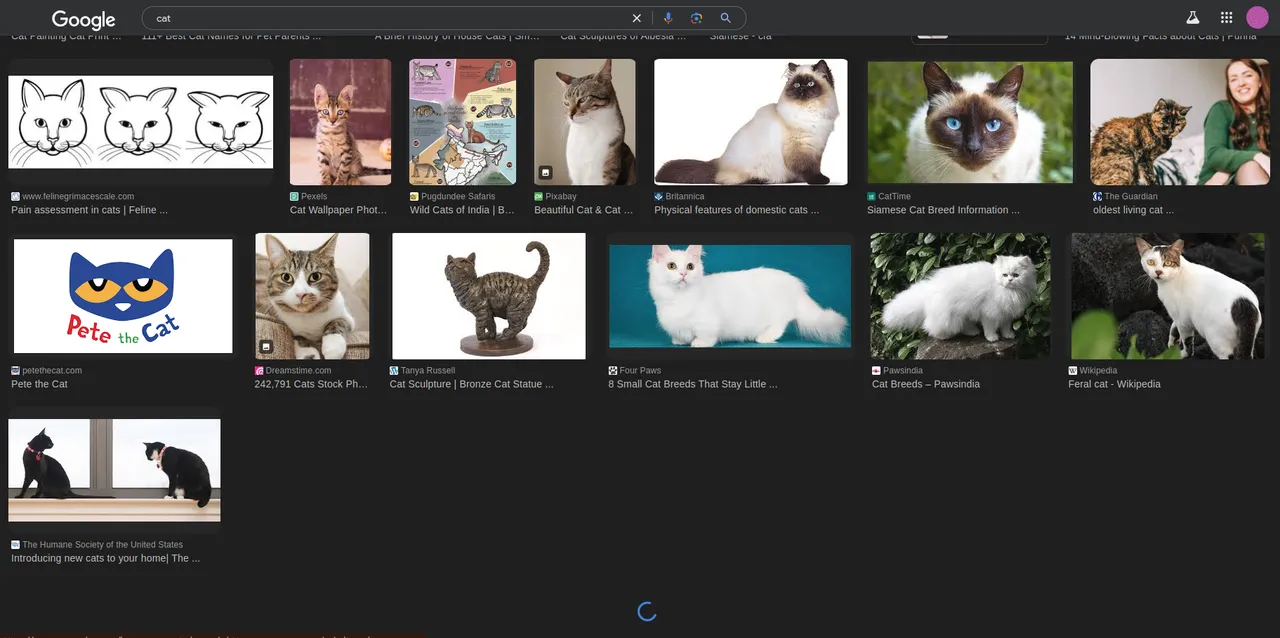
이미지 출처: 작성자 제작/캡처
이는 Javascript 명령어를 통해 구현할 수 있다.
화면 끝까지 스크롤 다운하는 코드이다.
# Scroll to the bottom of the page to load all images
last_height = driver.execute_script("return document.body.scrollHeight")

while True:
    # Scroll down
    driver.execute_script("window.scrollTo(0, document.body.scrollHeight);")
    time.sleep(2) # Wait for images to load

    # Check if we have reached the bottom of the page
    new_height = driver.execute_script("return document.body.scrollHeight")
    if new_height == last_height:
        break
    last_height = new_height
3. 이미지 다운로드하기
이미지 다운로드를 위해 우리는 HTML에서 CLASS 개념을 알아야 한다.
간단히 설명하면, 웹에서 특정 요소에 대한 이름이라고 생각하면 된다. 이번 상황을 예로 들면, "우리가 원하는 이미지 이름" 이 된다.
"우리가 원하는 이미지 이름" 은 f12를 눌러 개발자 모드로 진입하면 알 수 있다.
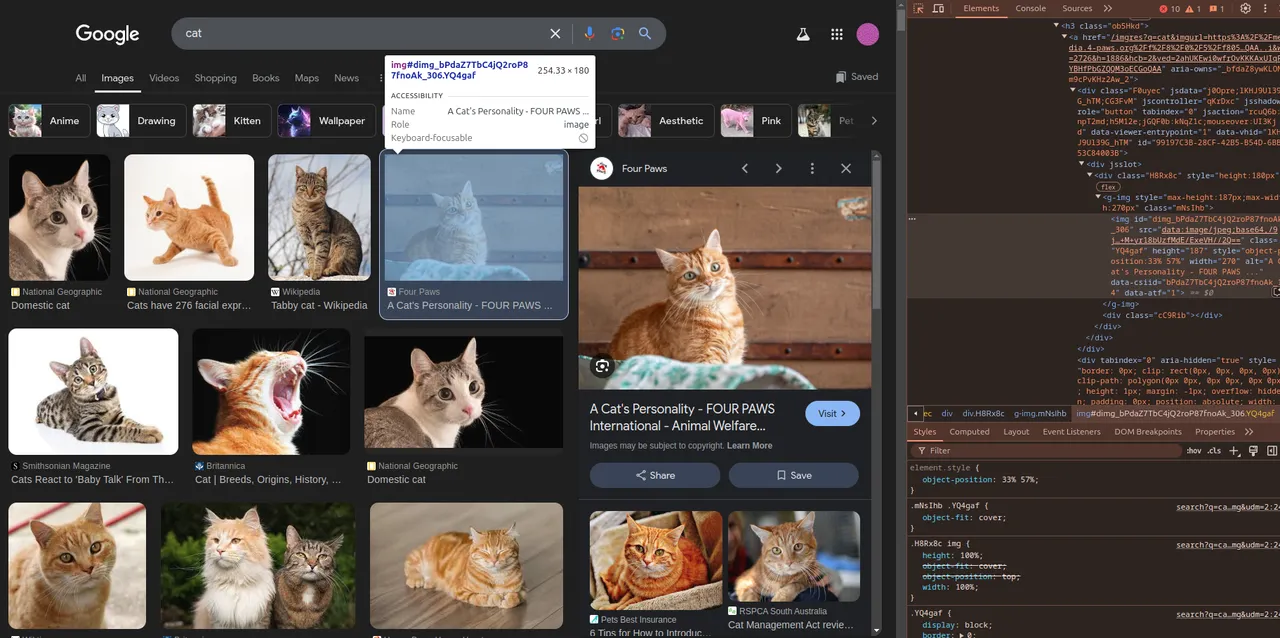
이미지 출처: 작성자 제작/캡처
2024년 12월 기준으로 이미지 CLASS는 YQ4gaf이다.
여기서 문제는 아이콘 이미지 CLASS는 YQ4gaf zr758c이기 때문에 예외처리를 해줘야 한다.
이를 적용하면 다음과 같다:
# Wait for images to load after scrolling
image_elements = WebDriverWait(driver, 10).until(
    EC.presence_of_all_elements_located((By.CLASS_NAME, "YQ4gaf"))
)

# Extract image URLs from the elements
image_urls = []
for image in image_elements:
    try:
        # Skip images with "YQ4gaf zr758c" class name
        if "zr758c" in image.get_attribute("class"):
            continue
        img_url = image.get_attribute("src")
        image_urls.append(img_url)

    except Exception as e:
        print(f"Error extracting image URL: {e}")

# Create a directory to save the images
save_dir = f"images_{keyword}"
os.makedirs(save_dir, exist_ok=True)

# Download the images
for i, url in enumerate(image_urls):
    try:
        response = requests.get(url, stream=True)
        if response.status_code == 200:
            with open(os.path.join(save_dir, f"image_{i+1}.jpg"), "wb") as file:
                for chunk in response.iter_content(1024):
                    file.write(chunk)
        print(f"Downloaded: image_{i+1}.jpg")
    except Exception as e:
        print(f"Error downloading image {i+1}: {e}")

print(f"Downloaded {len(image_urls)} images to folder '{save_dir}'")
전체코드
# Cralwing libaries
from selenium import webdriver
from selenium.webdriver.common.by import By
from selenium.webdriver.support import expected_conditions as EC
from selenium.webdriver.support.ui import WebDriverWait

import requests
import time
import os

# Typing keyword
keyword = input("Image keyword to search: ")

# Encode the keyword for URL
search_url = f"https://www.google.com/search?q={keyword}&tbm=isch"

# Initialize the Chrome driver
driver = webdriver.Chrome()

# Navigate to Google Images search with the keyword
driver.get(search_url)

# Verify that the search results are loaded
assert "No results found." not in driver.page_source

# Scroll to the bottom of the page to load all images
last_height = driver.execute_script("return document.body.scrollHeight")
while True:
    # Scroll down
    driver.execute_script("window.scrollTo(0, document.body.scrollHeight);")
    time.sleep(2)  # Wait for images to load

    # Check if we have reached the bottom of the page
    new_height = driver.execute_script("return document.body.scrollHeight")
    if new_height == last_height:
        break
    last_height = new_height

# Wait for images to load after scrolling
image_elements = WebDriverWait(driver, 10).until(
    EC.presence_of_all_elements_located((By.CLASS_NAME, "YQ4gaf"))
)

# Extract image URLs from the elements
image_urls = []
for image in image_elements:
    try:
        # Skip images with "YQ4gaf zr758c" class name
        if "zr758c" in image.get_attribute("class"):
            continue
        img_url = image.get_attribute("src")
        image_urls.append(img_url)

    except Exception as e:
        print(f"Error extracting image URL: {e}")

# Create a directory to save the images
save_dir = f"images_{keyword}"
os.makedirs(save_dir, exist_ok=True)

# Download the images
for i, url in enumerate(image_urls):
    try:
        response = requests.get(url, stream=True)
        if response.status_code == 200:
            with open(os.path.join(save_dir, f"image_{i+1}.jpg"), "wb") as file:
                for chunk in response.iter_content(1024):
                    file.write(chunk)
        print(f"Downloaded: image_{i+1}.jpg")
    except Exception as e:
        print(f"Error downloading image {i+1}: {e}")

print(f"Downloaded {len(image_urls)} images to folder '{save_dir}'")

# Close the browser
driver.quit()
위 코드의 단점
사실 위 코드를 사용해도 무방하지만, 크게 두 가지 문제점이 존재한다.
- 프로그램 실행할 때마다 웹 창이 뜸.
- 이미지 다운로드 속도가 느림.
- 객체 지향적이지 않음. (필자 취향)
Chrome 옵션 수정으로 웹 창이 안뜨게 하고 최적화를 해보자.
다음과 같이 불필요한 설정을 비활성화함으로써 최적화를 시킬 수 있다.
# Set up Chrome options for headless mode
options = Options()
options.add_argument("--headless") # Run Chrome in headless mode
options.add_argument("--disable-gpu") # Disable GPU hardware acceleration
options.add_argument("--no-sandbox") # Disable sandboxing for security restrictions
options.add_argument("--disable-extensions") # Disable extensions

# Initialize the Chrome driver with options
driver = webdriver.Chrome(options=options)
다음으로 ThreadPoolExecutor로 동시에 여러 이미지를 다운로드하여 속도를 증가시킬 수 있다.
이를 모두 적용하면 다음과 같다:
#! ./venv/bin/python3
# Cralwing libaries
from selenium import webdriver
from selenium.webdriver.common.by import By
from selenium.webdriver.support import expected_conditions as EC
from selenium.webdriver.chrome.options import Options
from selenium.webdriver.support.wait import WebDriverWait

from concurrent.futures import ThreadPoolExecutor

from tqdm import tqdm
import mimetypes
import requests
import time
import os

class GetImageDepth:
    """
    A class to retrieve image depth maps from a given keyword.

    Attributes:
        keyword (str): The keyword used to search for images.
        file_path (str): The directory path to save the depth maps.
    """
    def __init__(self, keyword, file_path):
        """
        Initialize GetImageDepth object.

        Args:
            keyword (str): The keyword used to search for images.
            file_path (str): The directory path to save the depth maps.
        """
        # Check for keyword is empty
        if not keyword:
            raise ValueError("Keyword must not be empty")

        # Check for file path is empty
        if not file_path:
            raise ValueError("File path must not be empty")

        self.keyword = keyword
        self.file_path = file_path

        # Create the directory if it doesn't exist
        os.makedirs(file_path, exist_ok=True)
        os.makedirs(os.path.join(file_path, "origin"), exist_ok=True)
        os.makedirs(os.path.join(file_path, "depth"), exist_ok=True)

    def download_images(self):
        """
        Download images from Google using Firefox browser in headless mode.

        This method uses Selenium to open Google Images in Firefox,
        searches for the keyword, extracts image URLs, and downloads the images.

        Raises:
            AssertionError: If no results are found on the search page.
        """
        # Set up Chrome options for headless mode
        options = Options()
        options.add_argument("--headless")  # Run Chrome in headless mode
        options.add_argument("--disable-gpu")  # Disable GPU hardware acceleration
        options.add_argument("--no-sandbox")  # Disable sandboxing for security restrictions
        options.add_argument("--disable-extensions")  # Disable extensions

        # Initialize the Chrome driver with options
        driver = webdriver.Chrome(options=options)

        # Navigate to Google Images search with the keyword
        search_url = f"https://www.google.com/search?q={self.keyword}&tbm=isch"
        driver.get(search_url)

        # Verify that the search results are loaded
        assert "No results found." not in driver.page_source

        # Scroll to the bottom of the page to load all images
        last_height = driver.execute_script("return document.body.scrollHeight")
        while True:
            # Scroll down
            driver.execute_script("window.scrollTo(0, document.body.scrollHeight);")
            time.sleep(2)  # Wait for images to load

            # Check if we have reached the bottom of the page
            new_height = driver.execute_script("return document.body.scrollHeight")
            if new_height == last_height:
                break
            last_height = new_height

        # Wait for images to load after scrolling
        image_elements = WebDriverWait(driver, 10).until(
            EC.presence_of_all_elements_located((By.CLASS_NAME, "YQ4gaf"))
        )

        # Extract image URLs from the elements
        image_urls = []
        for image in image_elements:
            try:
                # Skip images with "YQ4gaf zr758c" class name
                if "zr758c" in image.get_attribute("class"):
                    continue

                img_url = image.get_attribute("src")
                image_urls.append(img_url)

            except Exception as e:
                print(f"Error extracting image URL: {e}")

        # Close the browser
        driver.quit()

        # Download images using ThreadPoolExecutor for parallel downloading
        self._download_images_concurrently(image_urls)

    def _download_images_concurrently(self, image_urls):
        """
        Download images concurrently using ThreadPoolExecutor.

        Args:
            image_urls (list): List of image URLs to be downloaded.
        """
        with ThreadPoolExecutor(max_workers=8) as executor:
            list(tqdm(executor.map(self._save_image, image_urls, range(len(image_urls))), total=len(image_urls), desc="Downloading images"))

    def _save_image(self, url, index):
        """
        Save an image from a URL to the specified file path with the correct file extension.

        Args:
            url (str): The image URL.
            index (int): The index of the image for naming.
        """
        try:
            # Request the image data
            response = requests.get(url, stream=True, timeout=10)
            response.raise_for_status()  # Check for HTTP errors

            # Get the content type of the image (e.g., "image/jpeg", "image/png")
            content_type = response.headers.get('Content-Type', '')
            file_extension = mimetypes.guess_extension(content_type)  # Use mimetypes to guess the file extension

            # If mimetypes couldn't determine the extension, default to .jpg
            if not file_extension:
                file_extension = '.jpg'

            # Save the image with the correct file extension
            file_name = os.path.join(os.path.join(self.file_path, "origin"), f"image_{index}{file_extension}")
            with open(file_name, "wb") as file:
                for chunk in response.iter_content(1024):
                    file.write(chunk)

        except Exception as e:
            print(f"Failed to save image {index}: {e}")

if __name__ == "__main__":
    keyword = input("Image keyword to search: ")
    file_path = os.path.join(os.getcwd(), "train_data")

    getImageDepth = GetImageDepth(keyword=keyword, file_path=file_path)
    getImageDepth.download_images()